Lat Long to Metres and Duplicate Legend Component
Originally Published inToday, we discuss duplicating legend components in Python, my own non-API Python work and some undocumented utility methods:
- Duplicate legend component in Python
- Convert latitude and longitude to metres in Python
- UIFrameworkService utility methods
Before diving into that, here is yet another interesting discussion related to the frequently repeated advice that exceptions should be exceptional:
Duplicate Legend Component in Python
In a comment ↗ on the workaround to duplicate a legend component ↗, Oliwer Kulpa demonstrates how to set the LEGEND_COMPONENT built-in parameter after copying a legend component:
Question: Any news about this Legend Component API? Is there any way I can at least do a Symbol Swap inside the Legend View?
I’m trying the following code:
  element1.get_Parameter(
    BuiltInParameter.LEGEND_COMPONENT )
      .Set( element2.Id );
However, that produces an error saying, The component you have selected is not visible in the selected view.
Solution: I found out that you need to feed FamilyType.Id when setting up a copied legend component:
  CopiedLegendComponent.get_Parameter(
    BuiltInParameter.LEGEND_COMPONENT )
      .Set( FamilyType.Id )
It worked for me!
Since it is a part of a larger Python Script in Dynamo, I’ve extracted the following code fragment which works on a legend view with one single legend component.
I hope it is readable enough for everyone:
  doc = DocumentManager.Instance.CurrentDBDocument
  current_view = doc.ActiveView

  # Get legend component in current view

  existing_legend_component = FilteredElementCollector(
    doc, doc.ActiveView.Id)
      .OfCategory(BuiltInCategory.OST_LegendComponents)
      .FirstElement()

  # Get door family type id

  door_family_type = FilteredElementCollector(doc)
    .OfCategory(BuiltInCategory.OST_Doors)
    .WhereElementIsElementType()
    .FirstElement()

  # Start Transaction

  TransactionManager.Instance.EnsureInTransaction(doc)

  # Copy legend and set new Id to represent new element

  new_legend_component = ElementTransformUtils
    .CopyElement(doc, existing_legend_component.Id,
      XYZ(10, 0,0))

  # The result of CopyElement is a list of Ids,
  # so fetch the first element from copied elements

  doc.GetElement(new_legend_component[0])
    .get_Parameter(BuiltInParameter.LEGEND_COMPONENT)
    .Set(door_family_type.Id)

  doc.Regenerate()

  # End Transaction

  TransactionManager.Instance.TransactionTaskDone()
Here is a picture of the result of copying a window legend component and setting it to a door family type:
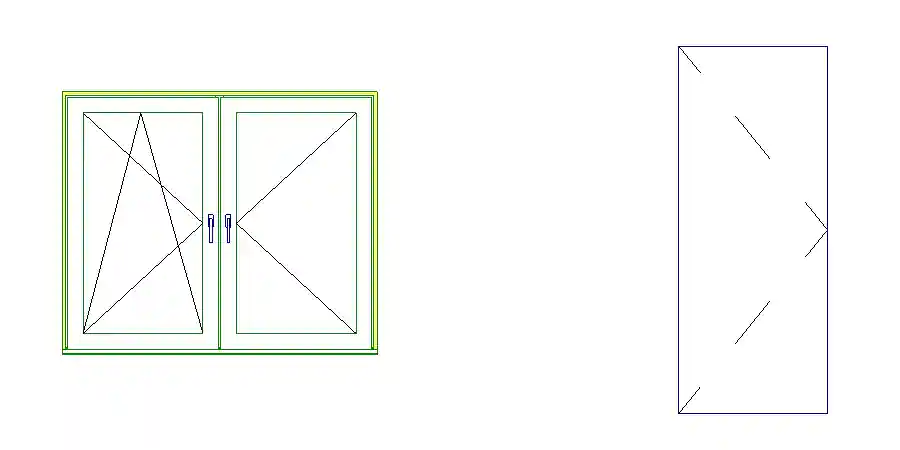
Many thanks to Oliwer for sharing this useful discovery.
Convert Latitude and Longitude to Metres in Python
I fiddled around a bit with Python myself last week to convert latitude and longitude values to real-world length in order to verify their validity.
I tried three different conversion methods and compared their results to the expected property border edge lengths.
The results are preserved and presented in the geolocation_waldrain GitHub repository ↗.
To begin with, I had six unconfirmed latitude and longitude coordinates for the six corner points of the plot.
I also had pretty precise edge length and area measurements in metres:
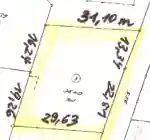
That leads to the following data:
  pts = [
    [47.61240287934088,7.668455564143808],
    [47.61238603493116,7.66886803694362],
    [47.61227235282722,7.668805013356426],
    [47.612081232450755,7.668710772100395],
    [47.61209766306042,7.668317607008359],
    [47.612263038360155,7.668392271613928]]

  tags = ['NW','NO','OM','SO','SW','WM']

  edge_length = [ # in metres
    31.10, # Nord
    13.34, 22.51, # Ost
    29.63, # Sued
    19.26, 16.24 ] # West

  area = 1043 # square metres
I found a couple of articles describing how to calculate the distance in metres between two points given their latitude and longitude.
The simplest suggestion is to apply the Haversine formula ↗, assuming that the Earth is a sphere with a circumference of 40075 km. In that case, the length in meters of 1 degree of latitude is always 111.32 km, and the length in meters of 1 degree of longitude equals 40075 km * cos( latitude ) / 360.
More precise calculations are suggested by the following three articles:
- How to convert latitude or longitude to meters? ↗
→ Calculate distance, bearing and more between Latitude/Longitude points ↗ - How to convert latitude or longitude to meters? ↗
→ Solution suggested in Wikipedia on the geographic coordinate system ↗ - Understanding terms in Length of Degree formula ↗
Here is the result of calculating the distances between along the edges between the six given points and comparing with the given edge lengths:
Edge    | Given | 1.            | 2.            | 3.
NW - NO | 31.10 | 31.01 (-0.09) | 30.96 (-0.14) | 31.07 (-0.03)
NO - OM | 13.34 | 13.38 (+0.04) | 13.36 (+0.02) | 13.37 (+0.03)
OM - SO | 22.51 | 22.55 (+0.04) | 22.52 (+0.01) | 22.53 (+0.02)
SO - SW | 29.63 | 29.56 (-0.07) | 29.51 (-0.12) | 29.62 (-0.01)
SW - WM | 19.26 | 19.24 (-0.02) | 19.22 (-0.04) | 19.23 (-0.03)
WM - NW | 16.24 | 16.28 (+0.04) | 16.25 (+0.01) | 16.26 (+0.02)
The third algorithm seems to return the most precise results, assuming the given points and edge distances are correct to start with.
Next, I used the metre-based X and Y coordinates produced by the third algorithm to also calculate the area and compare that with the expected result.
I tweaked the original latitude and longitude coordinates a bit to reduce the errors, even though I am not sure whether they stem from the coordinates or my processing.
The full report after adding that looks like this:
6 points:
  NW [47.61240288, 7.66845556]
  NO [47.6123859, 7.6688685]
  OM [47.61227361, 7.66880501]
  SO [47.6120811, 7.6687109]
  SW [47.6120972, 7.66831761]
  WM [47.612263, 7.66839227]
centre point:
  [47.612250614999994, 7.668591641666667]
edge lengths:
  NW - NO: 31.10 31.05 (-0.05) 30.99 (-0.11) 31.10 (+0.00)
  NO - OM: 13.34 13.38 (+0.04) 13.36 (+0.02) 13.37 (+0.03)
  OM - SO: 22.51 22.56 (+0.05) 22.54 (+0.03) 22.54 (+0.03)
  SO - SW: 29.63 29.57 (-0.06) 29.52 (-0.11) 29.62 (-0.01)
  SW - WM: 19.26 19.29 (+0.03) 19.26 (+0.00) 19.27 (+0.01)
  WM - NW: 16.24 16.28 (+0.04) 16.26 (+0.02) 16.26 (+0.02)
area calculated:
  1042.28 (error -0.72)
For the complete source code, please refer to the geolocation_waldrain GitHub repository ↗.
UIFrameworkService Utility Methods
While writing the above, I also conversed with Kennan Chen of Shanghai on getting notified when a family type is about to be placed ↗.
He pointed out some interesting functionality that I was previously unaware of in UIFrameworkServices.dll:
Question: Is an event which can notify when Revit is about to place a family type?
There are events like Application FamilyLoadedIntoDocument and FamilyLoadingIntoDocument.
Is it possible to have another event FamilyTypePlacingIntoDocument for this?
Or is there a workaround?
Answer: As recently discussed, you can use the DocumentChanged event to detect the launching of a command ↗.
Response: It works great to catch the placing FamilyType event triggered by placing type directly from Revit UI.
The code I use:
  void Application_DocumentChanged(
    object sender,
    DocumentChangedEventArgs e )
  {
    var transactionName = e.GetTransactionNames()
      .FirstOrDefault();

    if( transactionName == "Modify element attributes" )
    {
      //element placing
      var id = UIFrameworkServices.TypeSelectorService
        .getCurrentTypeId();

      if( id > 0 )
      {
        var elementId = new ElementId( id );
        var document = e.GetDocument();
        if( document.GetElement( elementId )
          is FamilySymbol familySymbol )
        {
          //Do something with the placing FamilySymbol
          Console.WriteLine( familySymbol.Name );
        }
      }
    }
  }
But when the placing event is triggered by UIDocument PostRequestForElementTypePlacement or PromptForFamilyInstancePlacement, the call UIFrameworkService.TypeSelectorServce.getCurrentTypeId() fails to return the currently placed type.
I also noticed that the Properties panel didn’t refresh in this scenario. I guess that’s the reason.
Is there another way to get the currently placing type?
UIFrameworkService is provided by a managed DLL in the Revit root folder, like RevitAPI.dll.
I decompiled it and found that method.
I guess this library is used by the Revit UI to interact with Revit native runtime.
The DLL name is UIFrameworkServices.dll
Some other useful method examples:
- I use
QuickAccessToolBarServiceperformMultipleUndoRedoOperationsto support undo operation in my own plugin. - I use
UIFrameworkServiceKeyboardShortcutServiceapplyShortcutChangesto support assigning keyboard shortcuts to custom ribbon items.