Revit 2018 Visual Studio .NET Add-in Wizards
Originally Published inI updated the Visual Studio Revit C# and VB add-in templates for Revit 2018.
They enable you to create a new C# or VB Revit add-in in Visual Studio with one single click on File > New > Project… > Visual Basic/Visual C# > Revit 2018 Addin:
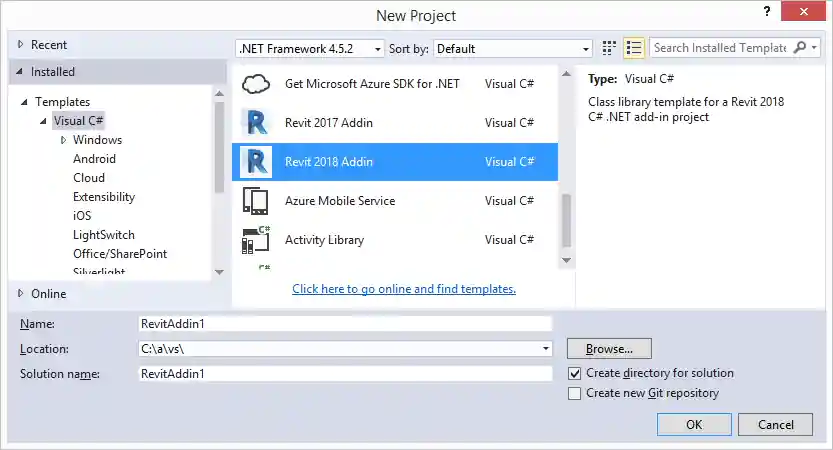
The templates define a complete skeleton Revit add-in, ready to immediately compile and run, including an add-in manifest file, an external application and an external command.
Just hit F5 to start debugging; the add-in manifest is automatically copied to the proper location, Revit is launched in the Visual Studio debugger, and your shiny new add-in is immediately available in the external tools menu.
You can see it in action in this two-and-a-half-minute Revit 2018 C# and VB .NET add-in wizard recording ↗:
Please refer to the Visual Studio Revit add-in wizards topic group for further information on usage, customising the templates for your own needs and migrations in previous years.
Download
The current version discussed above is release 2018.0.0.0 ↗.
The newest version is always available from the VisualStudioRevitAddinWizard GitHub repository ↗.
Installation
The exact locations to install the wizards for Visual Studio are language dependent.
You install them by simply copying the zip file of your choice – for C#, VB, or both – to the appropriate Visual Studio project template folder in your local file system:
- C# – copy Revit2018AddinWizardCs0.zip to [My Documents]\Visual Studio 2015\Templates\ProjectTemplates\Visual C#
- Visual Basic – copy Revit2018AddinWizardVb0.zip to [My Documents]\Visual Studio 2015\Templates\ProjectTemplates\Visual Basic
Or, in other words:
  $ cp Revit2018AddinWizardCs0.zip \
  "/v/C/Users/tammikj/Documents/Visual Studio \
  2015/Templates/ProjectTemplates/Visual C#/"

  $ cp Revit2018AddinWizardVb0.zip \
  "/v/C/Users/tammikj/Documents/Visual Studio \
  2015/Templates/ProjectTemplates/Visual Basic/"
The GitHub repository includes a batch file install.bat to automate this process:
@echo off
if exist cs (goto okcs) else (echo "No cs folder found." && goto exit)
:okcs
if exist vb (goto okvb) else (echo "No vb folder found." && goto exit)
:okvb
set "D=C:\Users\%USERNAME%\Documents\Visual Studio 2015\Templates\ProjectTemplates"
set "F=%TEMP%\Revit2018AddinWizardCs0.zip"
echo Creating C# wizard archive %F%...
cd cs
zip -r "%F%" *
cd ..
echo Copying C# wizard archive to %D%\Visual C#...
copy "%F%" "%D%\Visual C#"
set "F=%TEMP%\Revit2018AddinWizardVb0.zip"
echo Creating VB wizard archive %F%...
cd vb
zip -r "%F%" *
cd ..
echo Copying VB wizard archive to %D%\Visual Basic...
copy "%F%" "%D%\Visual Basic"
:exit
It assumes that you cloned the VisualStudioRevitAddinWizard to your local file system and call it from that directory, e.g., like this:
C:\a\vs\VisualStudioRevitAddinWizard > install.bat

Creating C# wizard archive C:\Users\tammikj\AppData\Local\Temp\Revit2018AddinWizardCs0.zip...
updating: App.cs (deflated 54%)
updating: Command.cs (deflated 59%)
updating: Properties/ (stored 0%)
updating: Properties/AssemblyInfo.cs (deflated 56%)
updating: RegisterAddin.addin (deflated 66%)
updating: TemplateIcon.ico (deflated 67%)
updating: TemplateRevitCs.csproj (deflated 69%)
updating: TemplateRevitCs.csproj.user (deflated 30%)
updating: TemplateRevitCs.vstemplate (deflated 65%)

Copying C# wizard archive to C:\Users\tammikj\Documents\Visual Studio 2015\Templates\ProjectTemplates\Visual C#...
  1 file(s) copied.

Creating VB wizard archive C:\Users\tammikj\AppData\Local\Temp\Revit2018AddinWizardVb0.zip...
updating: AdskApplication.vb (deflated 68%)
updating: AdskCommand.vb (deflated 58%)
updating: My Project/ (stored 0%)
updating: My Project/AssemblyInfo.vb (deflated 54%)
updating: RegisterAddin.addin (deflated 66%)
updating: TemplateIcon.ico (deflated 67%)
updating: TemplateRevitVb.vbproj (deflated 72%)
updating: TemplateRevitVb.vstemplate (deflated 62%)
Copying VB wizard archive to C:\Users\tammikj\Documents\Visual Studio 2015\Templates\ProjectTemplates\Visual Basic...
  1 file(s) copied.
I hope you find this useful and look forward to hearing about your customisations and suggestions for other enhancements.
Have fun!